
hen working with numeric fields in a form, you may notice that the number of decimal places displayed is limited by default. In scenarios like percentages, costs, or chemical compositions, you often need higher precision.
In this guide, we’ll see how to force a field to display more decimal places directly from the form.
🔍 Real Example
In the form below, the field Overview_Percentage initially shows limited decimals:
👉 Example value:
1,00000
But suppose you want to display more precision (e.g., 8 decimals).
⚙️ Step-by-Step Guide
1. Open the Form
- Go to Visual Studio
- Open your form (e.g.,
OTS010_CastingTable)
2. Locate the Field
- Navigate in the design: Grid → Group → YourField (e.g., Overview_Percentage)
- Select the control (FormRealControl)
3. Open Properties
With the field selected, go to the Properties window and locate:
- Min No Of Decimals Mode
- Min No Of Decimals
4. Configure Decimal Visualization
Set the following:
- Min No Of Decimals Mode →
Fixed - Min No Of Decimals →
8(or any number you need)
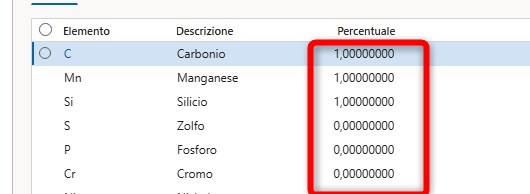
✅ Result
Done! 🎉
Now the field will always display 8 decimal places in the form.
👉 Example output:
1,00000000
🧠 Important Notes
- This setting affects only the visualization, not the stored value.
- If your value still doesn’t show more decimals:
- Check the EDT (Extended Data Type) behind the field
- Verify No Of Decimals and No Of Decimals Mode
⚠️ Common Pitfall
If you only set:
No Of Decimals→ it may still be overridden
👉 The key property is:
✔ Min No Of Decimals Mode = Fixed
💡 Pro Tip
Use this approach when:
- You need consistent formatting in grids
- You are working with:
- Percentages
- Scientific values
- Financial precision
 AX / Dynamics 365 For Finance and Operations blog
Leave a comment