
In Dynamics 365 Finance & Operations, it is often necessary to navigate from one form to another while preserving the context of the record you are working on. For instance, a user may want to open a detail form directly from a list page, so that the selected record is automatically carried over and displayed without the need to search for it again.
In this article, I will explain how to achieve this using Menu Item Buttons, how to make sure the correct record is opened, and how to refresh the source form after changes are made — all without writing a single line of code.
Passing the Selected Record
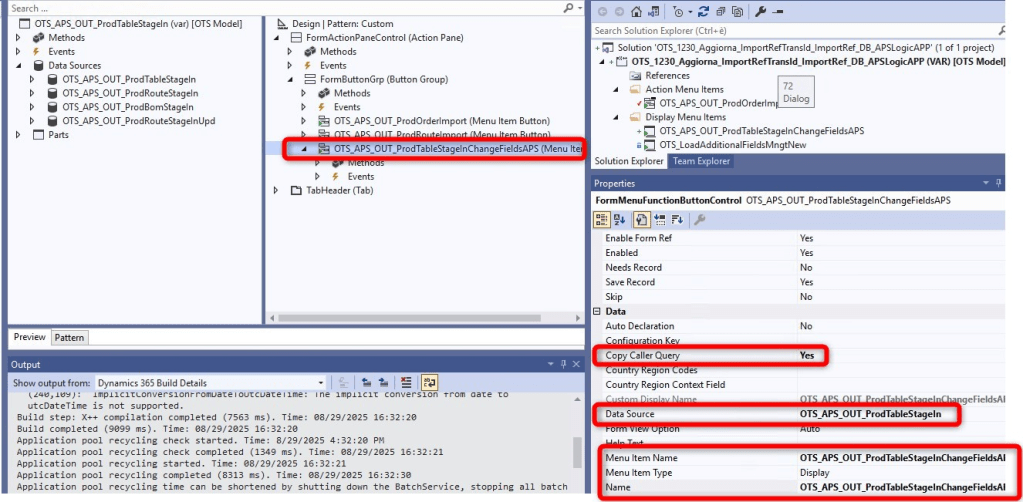
The simplest way to pass a record from one form to another is to use a Display Menu Item linked to a MenuItemButton on the source form.
In the source form, you configure the button so that:
- The MenuItemName points to the display menu item of the target form.
- The DataSource property is set to the datasource containing the record you want to pass.
- The Copy Caller Query property is set to Yes, so the filter based on the selected record is carried over.
This ensures that the target form opens directly on the correct record.
📸 Example: configuration of the button in the source form
Ensuring the Correct Record Appears
Sometimes, users notice that the target form opens on a “random” record rather than the one they had selected. This usually happens when:
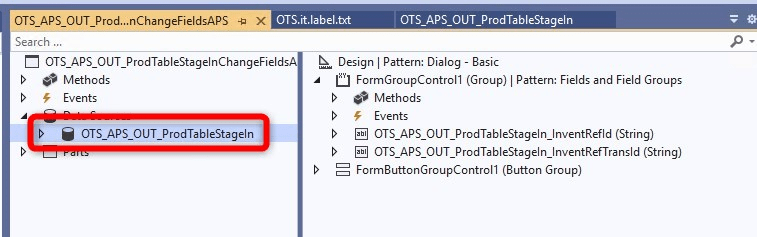
- The target form’s main datasource is not the same table as the one passed from the source.
- The datasource order or join configuration prevents the filter from being applied.
- The target form contains custom logic that clears or overrides the incoming query.
The key requirement is that the main datasource of the target form must be the same table as the datasource used in the source form. Once this is aligned, the system will automatically filter by the selected record’s RecId and open the correct record.
📸 Example: setup of the target form with the correct datasource
Refreshing the Source Form After Updates
After editing data in the target form, it is natural to expect the source form to show the updated values once you return. Many people assume this requires development, but Dynamics provides a simple solution: the Auto Refresh Data property.
When you enable this property on the MenuItemButton of the source form, Dynamics automatically refreshes the datasource once the target form is closed. This way, any changes made in the secondary form are immediately visible in the calling form.
📸 Example: enabling Auto Refresh Data on the button

Key Takeaways
- Use a MenuItemButton linked to a display menu item to open another form without code.
- Set the DataSource property so the selected record is passed along.
- Set Copy Caller Query = Yes to ensure the filter is correctly applied in the target form.
- Enable Auto Refresh Data = Yes to make sure the source form reflects updates after the target form is closed.
Conclusion
By configuring just a few properties, you can create smooth, code-free navigation flows between forms in Dynamics 365 Finance & Operations. This gives end users exactly what they need: a seamless experience where they can drill down into details, make changes, and return to see everything already updated — without any extra clicks or manual refreshes.
 AX / Dynamics 365 For Finance and Operations blog
Leave a comment